Give your booking page its look — or let the brand kit lead
One switch decides who leads: the company brand kit, or you.
2 min readFor all rolesUpdated 3 Nov 2026In review
In review: written from the product, not yet walked through live.
Transcript · 0:38
Your booking page, in your own colour and words. Here is where you set it, in SkedX CRM. In Calendar, open settings, the gear, and choose Booking page. Follow the company brand kit is on. Your page shows the logo, name and accent from Accounts, Brand, and Open brand kit changes them there. The fields below are greyed while the brand kit leads. Switch the brand kit off. Choose an accent colour, and the preview changes as you go. Each change is saved at once. Below them are the logo, a headline, the button's words, a cover image, and what shows on the page.
1Open Booking page
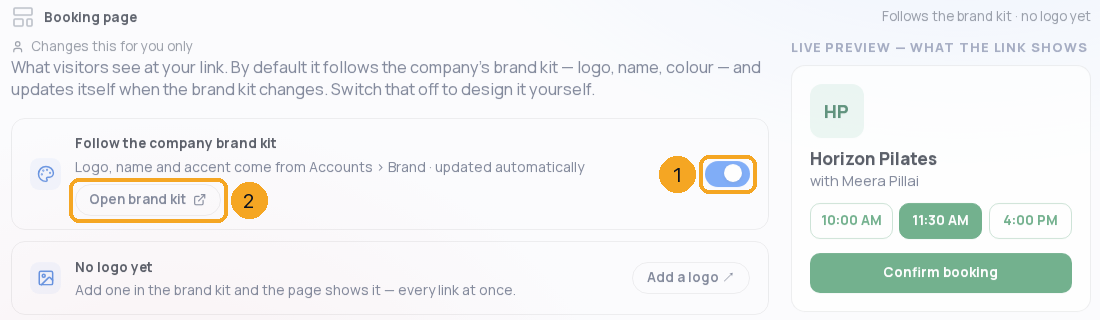
In Calendar, open settings (the gear) and choose Booking page. The switch Follow the company brand kit (1) is on: your page shows the logo, name and accent from Accounts › Brand, and Open brand kit (2) changes them there. The fields below are greyed while the brand kit leads.
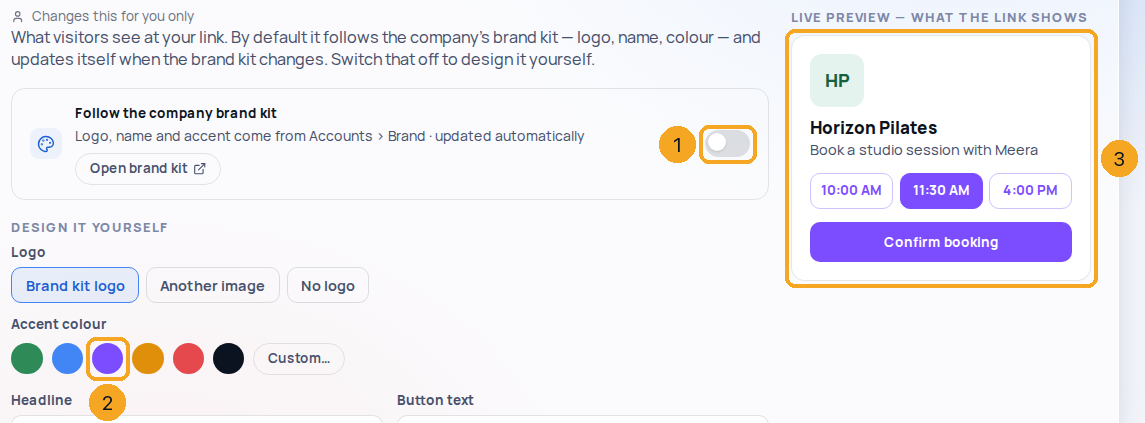
Switch the brand kit off (1). Choose an accent colour (2); the preview (3) changes as you go, and each change is saved at once. Below them: the logo, a headline, the button’s words, a cover image and what shows on the page.
How do I link our privacy policy and cookie settings?
An admin pastes each address (https://…) on this page — Your company’s privacy policy and Your company’s cookie settings. The privacy policy is linked under the Confirm button (“By booking you agree to your company’s privacy policy”) and at the foot of every booking page; the cookie settings at the foot. An address left empty shows nothing. Anyone else sees the addresses and that an admin sets them.
Which colour does my booking page use?
The brand kit’s main colour (Accounts › Brand) — on the picked day, the free times and the button, with lighter tints of it around them. Change it in the brand kit and every page that follows the kit changes too. A colour too light for white words is darkened just enough to stay readable. No colour in the brand kit yet → the page uses SkedX’s green.
Does a link’s own design still win?
Yes. A link set to Its own design keeps its own look; only links set to Same as my booking page follow this page.
Does my colleague’s page change too?
No — each person designs their own page. The brand kit is the company’s and is changed in Accounts.
Where do I upload a logo?
Put the logo in the company brand kit (Accounts › Brand) and every page that follows it shows it. For a different image on your page alone, choose Another image and give its https:// address.