Circle's window shows a customer chat exactly as the Flow inbox does, so you can read and answer it without leaving what you are doing.
In review: written from the product, not yet walked through live.
1Open the chat
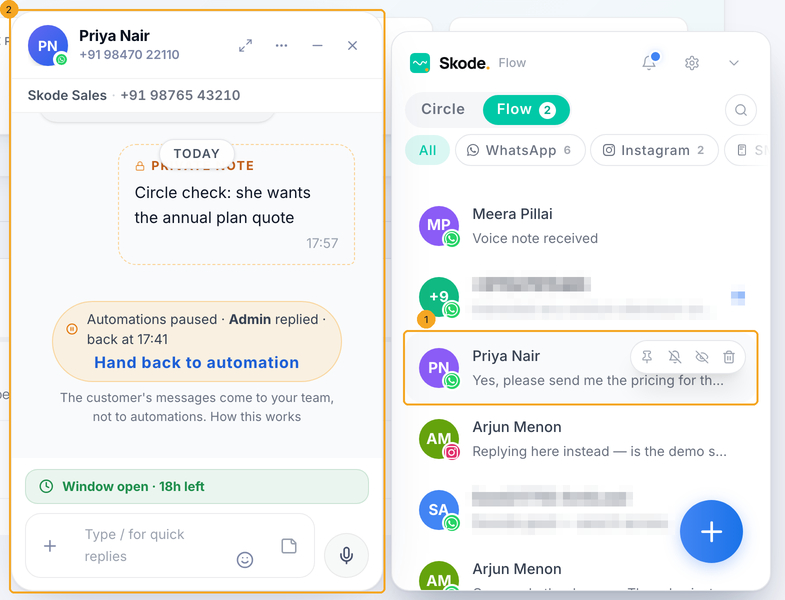
Click the Skode Circle pill at the bottom right, open the Flow tab and click a customer (1). The chat opens in its own window beside the list (2).
2Read who sent what
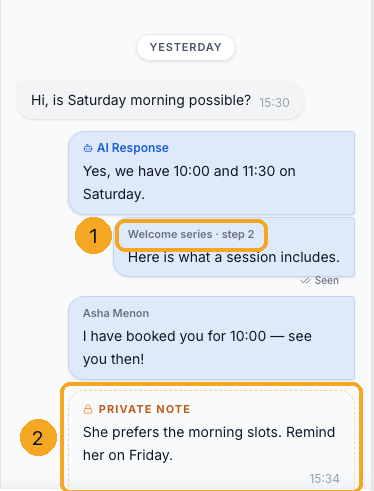
Above each message your side sent, a line says who sent it (1) — a teammate, AI, an automation and its step, an integration such as the API or Zapier, a Campaign, or the Phone app, Facebook app or Instagram app. A team note (2) is a note only your team sees. Cards — products, forms, bookings, orders, shared posts — show as cards.
3Reply
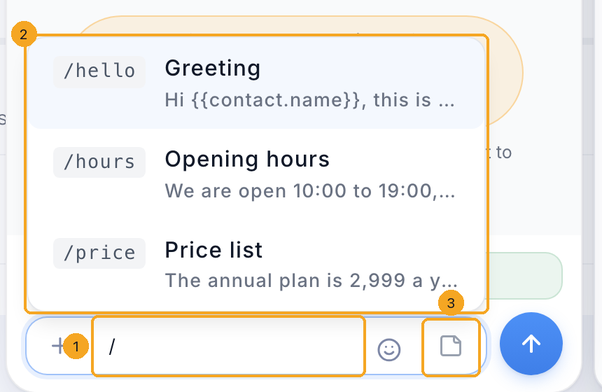
Type in the box at the bottom (1) and press Enter. Your reply shows at once and gets its ticks when the channel confirms it. Type / to pick a quick reply (2); its details fill in before you send. The note switch (3) turns the box into a team note that only your team sees, and you can write one after the 24-hour window has closed. When the window has closed, the strip above the box says so and Send a template is the way to reach the customer.
4Turn a message into work, or remove it for you
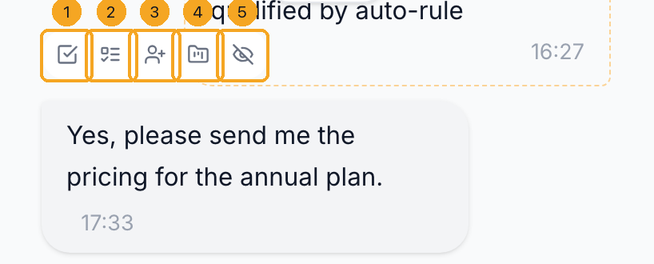
Hover a message. Make a task (1) adds a task with its words, for you. Make a decision (2) asks for a decision on it; while it waits, the message offers Mark decided and it is listed in Actions. Make an enquiry (3) opens the new-enquiry form for this person, with the message as its description. Start a project (4) starts a project from it. Remove for me (5) hides it from your own view, with Undo; the customer still has it.
© 2026 SkedX · Sample data only · Share and link freely · Copying the product or its design is not allowed · Terms
Common questions
Is this the same as the Inbox and the Flow inbox?
Yes. All three draw the same pane from Flow, so a message reads the same in each.
Does the customer see a note, task or decision I make here?
No. Notes, tasks, decisions, enquiries and projects stay inside SkedX. Only what you send from the reply box reaches the customer.
A message says Held back by WhatsApp
WhatsApp decided not to deliver it; nothing is wrong with your message and you are not charged. See Why WhatsApp held back some of your messages.
Can I send a reaction or quote a message from Circle?
Not yet — reactions a customer sends show here, and sending them and quoting are in the Flow inbox for now.
Previous: Send a WhatsApp template to one person from their record · All Inbox guides
Did this guide help?
Still stuck?Chat with support →


