Now it says so, says why, and gives you the one next step.
In review: written from the product, not yet walked through live.
1See that it was not delivered
Open the record. In Notes & Activity the email shows the reason and Not delivered (1), and the person who sent it also gets a bell notification. Click the line to open the email.

2Read why
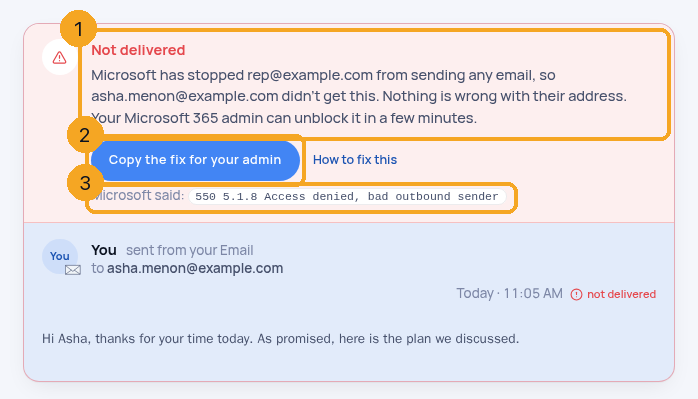
The email opens with a red band on top: Not delivered and why, in plain words (1), and one button (2). The email you wrote stays readable underneath. The small line at the bottom (3) is the server's own words — for your IT person, not for you.
3Your address was blocked from sending
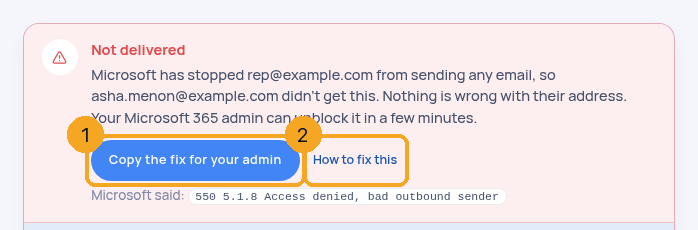
If the band says your provider has stopped your address from sending, the problem is your mailbox, not the customer: every email from it is coming back. Press Copy the fix for your admin (1) and paste it to whoever looks after your email — it is copied, not sent, because the blocked mailbox cannot send. For Microsoft 365 the admin: 1. pauses any bulk or automatic sending from that address (campaign or mail-merge tools); 2. opens security.microsoft.com → Email & collaboration → Review → Restricted entities, finds the address and chooses Unblock; 3. changes its password and turns on multi-factor sign-in. It can take up to an hour. How to fix this (2) opens this step.
4The address does not exist
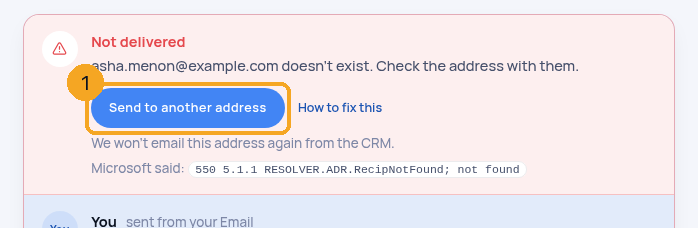
The band says the address doesn’t exist. Check it with the person, then Send to another address (1). The CRM will not email the address that bounced again, so a typo is not tried twice.
5Their inbox is full
The band says Their inbox is full. It usually clears in a day; press Send again (1) later. The address is still good, so the CRM keeps emailing it.
6Their server refused it
The band says Their email server refused it — often a company filter. Press Send to another address (1), or call or WhatsApp them from the record.
7Anything else
When the report gives no clear reason, the band says This email came back undelivered and offers Write again (1).
© 2026 SkedX · Sample data only · Share and link freely · Copying the product or its design is not allowed · Terms
Common questions
Did SkedX get my address blocked?
No. SkedX sends each email the normal way through your own Gmail or Outlook, one at a time. Providers block an address for its own sending — many emails in a short time, many to addresses that do not exist, or a stolen password. Only your email admin can unblock it.
I can still sign in and receive email — is it really blocked?
Yes. The block stops sending only; signing in and receiving look normal. In Microsoft 365 it shows in one place, Restricted entities, and Microsoft emails the alert to your admin, not to you.
Will SkedX stop emailing the customer?
Only when their address does not exist. When your address was blocked, or their inbox was full, their address is fine and the CRM keeps it.
Does this work for Gmail too?
Yes — any bounce that comes back to a connected Gmail or Outlook mailbox. The steps for your admin differ by provider; the band names yours.
Old emails that bounced before this still say Sent
The CRM marks an email when its bounce report arrives after this change. Emails that bounced earlier keep the status they had.
Next in InboxTurn chats into records with “Chats as <profile>” →
Previous: Reply to a Flow chat from Circle: read who sent what, answer, make a task · All Inbox guides
Did this guide help?
Still stuck?Chat with support →


