Send SkedX CRM records to Zapier, and add records from a Zap
3 min readFor adminsUpdated 14 Nov 2026In review
Your Zaps get every value the way your team reads it — and a Zap that sends a value your lists do not have is told which ones it can use.
In review: written from the product, not yet walked through live.
Transcript · 1:14
Your Zaps get every value the way your team reads it. Here is how to send SkedX CRM records to Zapier. Go to Settings, then Integrations. Search for Zapier, and click its card. Until a Zap is on, the panel says Not connected. Click Accept invite, then, in Zapier, start a Zap with our app as its trigger, and pick New enquiry. The panel turns to Connected by itself once the first Zap runs. Connected, the panel lists in plain words everything your Zaps listen to, and when each was last sent. Open Zapier for your Zaps. See what ran for every run, and any error. Every value arrives by the name your team sees on the record, like this status and this priority. A deal that moves stage sends the stage names. When a Zap adds or changes an enquiry, send a status and a priority your lists have. The name works, and so does the value. One your lists do not have is refused, never saved as the default. Integration history shows the refused call and the valid names. Fix the field in your Zap, and run it again.
1Open the Zapier panel
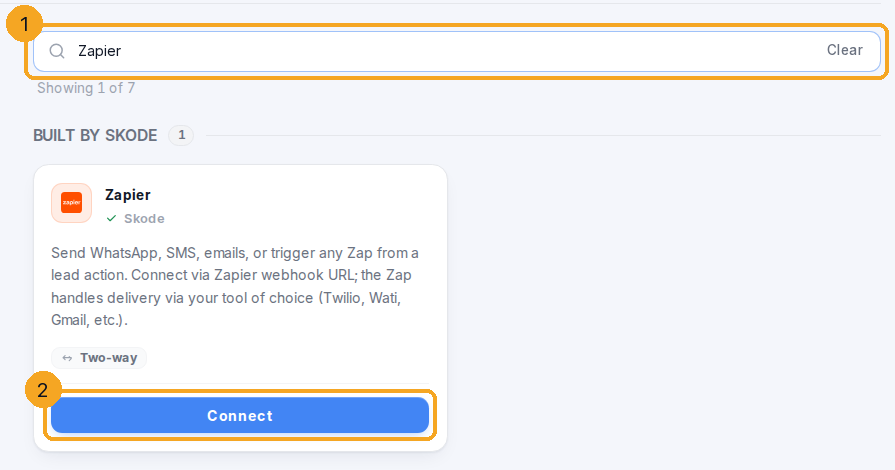
Go to Settings → Integrations, type Zapier in the search (1) and click Connect on its card (2). Its panel opens on the right.
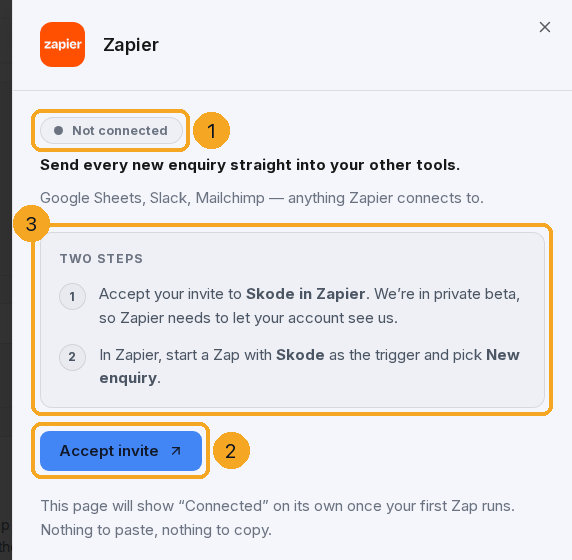
Until a Zap is on, the panel says Not connected (1). Click Accept invite (2): the SkedX app in Zapier is in private beta, so Zapier has to let your account see it. Then, in Zapier, start a Zap with our app as its trigger and pick New enquiry — the panel’s two steps (3) say the same. The panel turns Connected by itself once your first Zap runs; there is nothing to paste or copy.
3See what SkedX sends
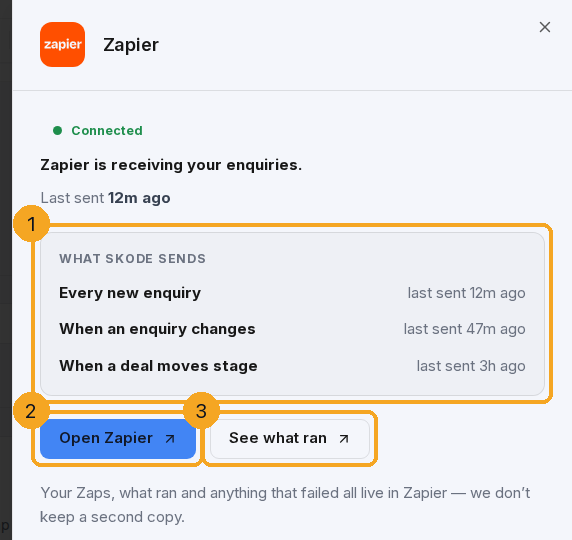
Connected, the panel lists in plain words everything your Zaps listen to (1) — Every new enquiry, When an enquiry changes, When a deal moves stage — and when each was last sent. Open Zapier (2) opens your Zaps; See what ran (3) opens Zapier’s history, where every run and any error lives. SkedX keeps no second copy of it.
The Zaps listed are examples.
4Values arrive by name
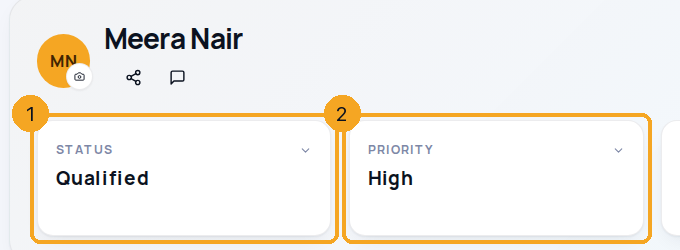
A status, priority, stage, drop-down or owner arrives by the name your team sees on the record — the status (1) and the priority (2) here reach Zapier as Qualified and High, never a code. The name comes from the list the record follows, so a profile with its own statuses sends its own words. A deal that moves stage sends the stage names, before and after.
The enquiry is a made-up example.
5Send values your lists have
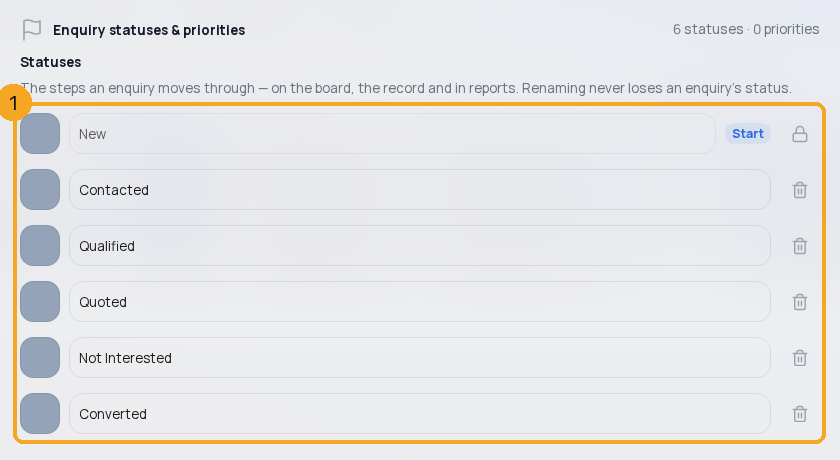
When a Zap creates or updates an enquiry, send a status and a priority your lists have (1) — the name or the value, in any case. Your lists are in the list’s Profile settings → Statuses. If another app uses its own words (“Hot lead”), add a Formatter → Lookup Table step in Zapier that turns them into yours.
6When a Zap is refused
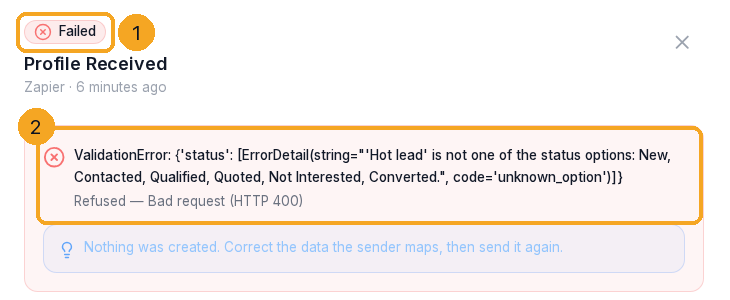
A status or priority your lists do not have is refused, never saved as the default status. Zapier shows the reason in See what ran: the value you sent and the names your list has, for example “‘Hot lead’ is not one of the status options: New, Contacted, Qualified …”. SkedX keeps the refused call too: Settings → Integrations → History lists it — open it to see Failed (1) and the reason (2). Fix the field in your Zap, then replay the run in Zapier.
My Zap started failing with “is not one of the status options”.
Since 14 Nov 2026 a status or priority your lists do not have is refused instead of becoming the default status. Map the field to one of the names the message lists, or add a Lookup Table step in Zapier, then replay the run.
Does SkedX send a code or a name for status, stage and owner?
The name your team sees — “Qualified”, “Proposal sent”, the owner’s name. Record ids stay, because they are how the next step of a Zap finds the record.
Can I see my Zaps or their runs in SkedX?
No — SkedX cannot open your Zapier account. The panel shows what Zapier listens to and when each was last sent; your Zaps, runs and errors live in Zapier (Open Zapier, See what ran).
Does a profile with its own statuses send its own words?
Yes. Each record is named from the list it follows, so a profile with its own statuses sends its words, and Enquiries send Enquiries’ words.
Does it matter if my Zap sends “qualified” or “Qualified”?
No. A status or priority is matched by its name or its value, in any case.