Find search and your account when the top bar is short of room
2 min readFor all rolesUpdated 12 Nov 2026In review
On a smaller window the top bar used to run off the right edge — your name, company and menu could end up off screen.
Now it makes room for itself, one small step at a time, and gives everything back when the window has room.
In review: written from the product, not yet walked through live.
Transcript · 0:58
On a small laptop, or zoomed in, the SkedX top bar fits itself to the room it has. Nothing is cut off at the edge. Here is where search and your account go. With room, the bar shows the Search everything box. With less room, the same box gets shorter. With less still, only its search icon is left. Each one opens the same search, and Command K, or Control K on Windows, opens it from any page. Your face, name and company sit at the top right. When there is no room for the words, only your face is left. Point at it to see your name and company. Click your face to open your menu: your name, your status, the company you are in, any other workspaces you can switch to, and Sign out. The bar folds only while it has no room. Make the window wider, go back to one hundred percent zoom, or fold the sidebar with Collapse, and the whole bar comes back.
1Search: a box, a shorter box, or its icon
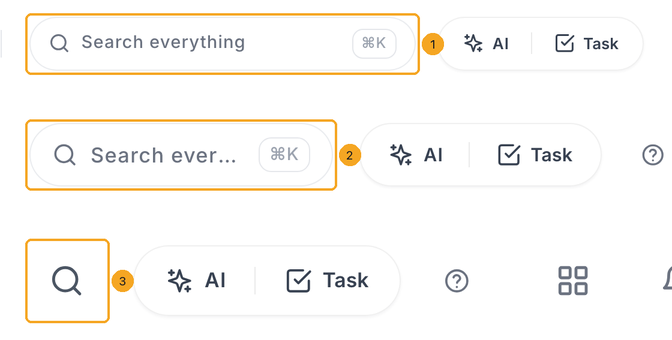
With room, the top bar shows the Search everything box (1). With less room, the same box is shorter (2). With less still, only its search icon is left (3). Each opens the same search window — and ⌘K (Ctrl K on Windows) opens it from any page.
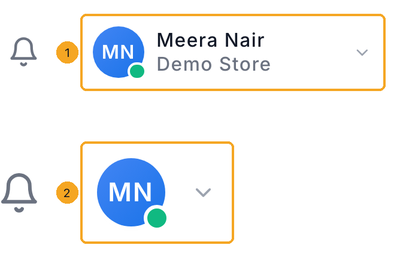
Your face, name and company sit at the top right (1). When the bar has no room for them — a small laptop with the Large or Largest text size, for example — only your face is left (2). Point at it to see your name and company.
3Open your menu
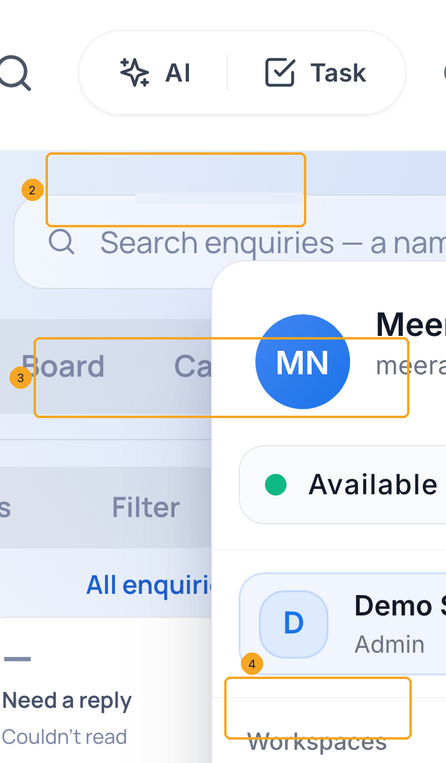
Click your face (1), or your name beside it. Your menu opens with your name at the top (2), then your status, the company you are in (3) and, under Workspaces, any others you can switch to, and Sign out (4) at the foot.
4Want the whole bar back? Make room
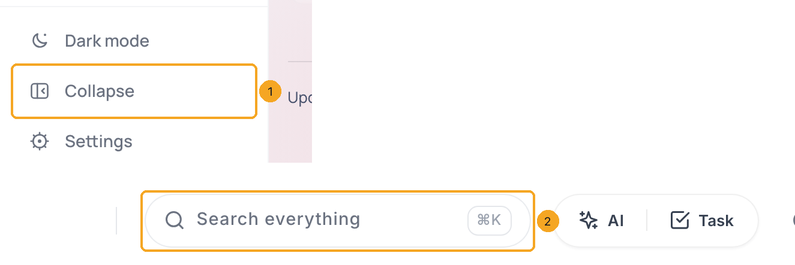
The bar folds only while it has no room, and unfolds the moment it has. Make the window wider, or fold the sidebar with Collapse at its foot (1) — here the full Search everything box comes back (2). Expand, in the same place, opens the sidebar again.
It is there as its search icon, just left of the AI and Task buttons — the window is too narrow for the box. Click it, or press ⌘K (Ctrl K on Windows). Make the window wider, or collapse the sidebar, and the box comes back.
My name and company are gone from the top right.
Your face is still there: the bar had no room for the words beside it. Point at your face to see your name and company, or click it for your menu — switching company and Sign out are in it.
Why does the top bar change when I resize the window?
It fits itself to the room it has, so nothing is ever cut off at the edge. It only changes the search box’s width, the space between the buttons, and your name beside your face — never which buttons are there.
Which company am I working in?
Its name is under yours at the top right; when only your face shows, point at it or open your menu. To open a link in the right company, see Open a link from a Skode email or notification.
Does the browser’s zoom change the top bar?
Yes. Zooming in (⌘ + or Ctrl +) leaves the bar less room, so it folds sooner. Press ⌘ 0 (Ctrl 0 on Windows) to go back to 100 % and the search box and your name come back where the window is wide enough.
Is the phone different?
The phone works as before: the search icon and your face, with AI and Tasks inside your menu. On the narrowest phones (an iPhone SE, or with Display Zoom on) the little arrow beside your face goes and the buttons sit a little closer, so every one stays a full finger’s size.