Before you reply to someone, see what already happened: what they asked last time, which campaign they read, what an automation sent them, and who on your team spoke to them.
It is all on the contact’s Activity tab.
In review: written from the product, not yet walked through live.
1Open a contact’s Activity
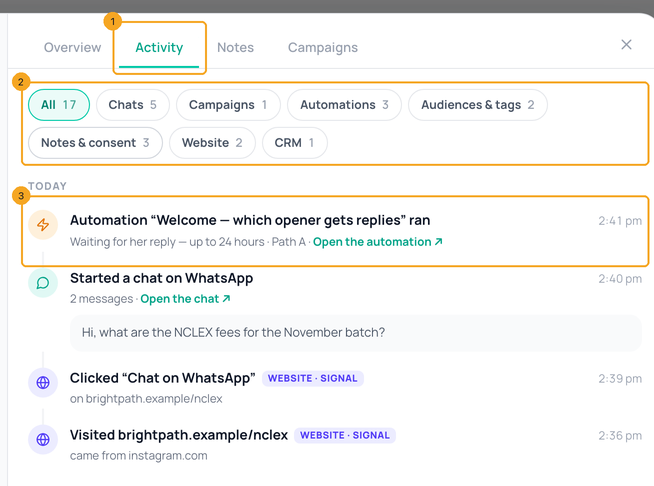
Open the contact — from Contacts, or the name at the top of a chat — and choose Activity (1). The filters (2) sit above one list, newest first, grouped by day; each row says what happened, who or what did it, and opens what it is about (3).
2Show one kind
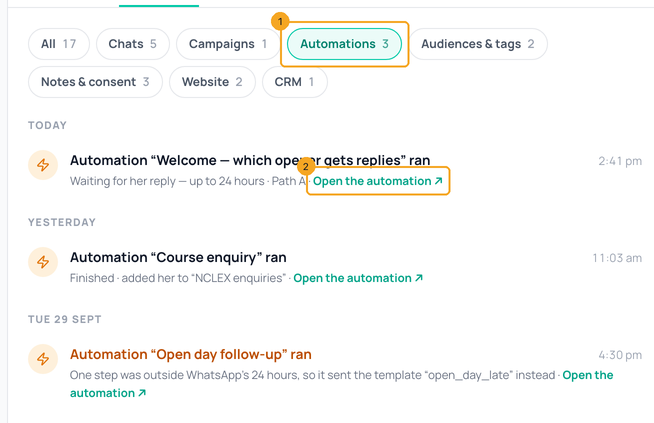
Tap a filter — here Automations (1) — to see only that kind; each number says how many. A row opens what it is about: Open the automation (2), Open the chat, the campaign. A run that skipped or stopped is shown in amber with the reason.
3Website visits
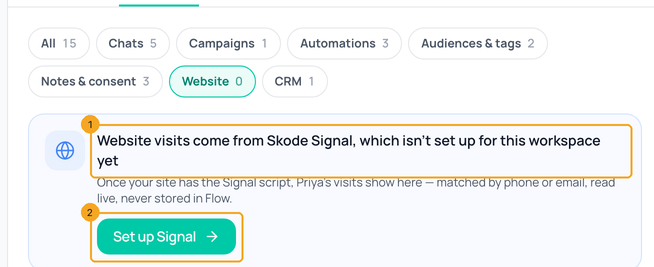
Website visits and clicks come from SkedX Signal, matched by the contact’s phone or email, and are read live — Flow never stores them. If Signal is not set up for your workspace yet, the Website filter says so (1) and offers Set up Signal (2).
4What is kept from when
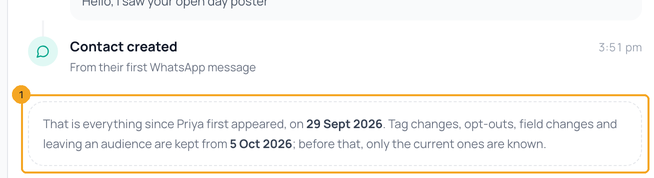
Chats, campaigns, notes, joining an audience and what automations did come across from the start. Tags, opt-outs, leaving an audience and field changes are kept from the day the timeline shipped — before that, Flow knew only the current ones. The end of the list says both dates (1).
© 2026 SkedX · Sample data only · Share and link freely · Copying the product or its design is not allowed · Terms
Common questions
Why don’t I see every message?
A chat is one row — when it started, who closed it and how many messages — so a long chat does not bury everything else. Open the chat shows every message.
Are the CRM rows stored in Flow?
No. They are read live from SkedX CRM each time and marked “SkedX CRM”. Flow keeps its own timeline; the CRM keeps its own.
One part says it couldn’t load. What now?
Each source loads on its own — Flow, SkedX Automate, SkedX Signal, SkedX CRM. If one does not answer, a note says which, with Try again; everything else still shows.
Next in ContactsA contact is marked Not on WhatsApp →
Did this guide help?
Still stuck?Chat with support →


