You don’t need to know how to code to connect Flow to your systems.
Copy the prompt below into ChatGPT, Claude or Gemini, add a few lines about your setup, and it writes the code for your own system — a website, a Google Sheet, an app — with everything it needs to know about the Flow API already inside.
In review: written from the product, not yet walked through live.
1Get your API key — but keep it out of the chat
Create an API key with Send messages and templates and List templates ticked. Don’t paste the key into the AI chat: the code it writes reads the key from a setting called
FLOW_API_KEY, and you put the real key there yourself.2Copy the prompt
Copy the whole block. It tells the assistant exactly how the Flow API works, what to check before sending, and how to handle every error.
You are helping me connect my system to SkedX Flow so it can send WhatsApp template messages. Write the code for me, step by step.

How the SkedX Flow API works
- Base URL: https://flowserver.skode.ai/api/v1/
- Every request sends the header: Authorization: Bearer <API key>
- The code must read the key from an environment variable or secret setting named FLOW_API_KEY. Never ask me to paste the key into this chat, never print or log it, and never put it in code that runs in a web browser or a phone app.

Send an approved WhatsApp template
POST https://flowserver.skode.ai/api/v1/messages/template/
JSON body:
- to (required): the customer's number WITH its country code, e.g. "+919876543210". Flow keeps only the digits and never adds a country code.
- template_name (required): the template's technical name in Flow
- variables: a flat list of strings, one per {{1}}, {{2}}… blank in the template's BODY, in order. Header images and button values are not supported.
- language (optional): leave it out to use the template's own language
- callback_data (optional): my own reference, up to 512 characters; it comes back in the answer and in that message's delivered/read/failed webhooks
Success: HTTP 200 {"ok": true, "id": "<WhatsApp's message id>", "flowMessageId": "<Flow's message id, which webhooks carry as message_id>", "callbackData": "<my reference>"}

List templates (to check a name and how many blanks it has)
GET https://flowserver.skode.ai/api/v1/templates/?channel=whatsapp
Returns {"ok": true, "templates": [{"templateName", "displayName", "language", "category", "status", "variableCount"}]}. Only status "approved" can be sent; variableCount is how many values "variables" needs.

Errors come back as JSON with an "error" message:
400 invalid input — Flow names the field, or passes on WhatsApp's own refusal (template not approved, wrong number of values) · 401 key missing, wrong or revoked · 402 messaging wallet empty · 403 the key lacks the permission named in the message · 409 no WhatsApp number connected · 422 the customer opted out.
Retry only 5xx errors, waiting longer each time. Never retry the others automatically; show or log the "error" message instead.
Full reference (OpenAPI): https://flowserver.skode.ai/api/v1/docs/

What I need
- My system: [e.g. a Google Sheet, a WordPress site, a Node.js or Python app, n8n]
- When to send: [e.g. when someone fills my enquiry form, or 30 minutes before each class]
- Which template, and what fills each blank: [e.g. batch_session_reminder_v1 — 1 batch name, 2 teacher, 3 time, 4 topic, 5 class link]

Before writing code, ask me anything you need to know. Then give me complete, working code that:
1. reads the key from FLOW_API_KEY,
2. adds the country code to phone numbers before sending,
3. handles every error above and tells me clearly what went wrong,
4. saves the returned id next to my own reference,
and tell me exactly how to test it by sending to my own number first.3Say what you need, in your own words
Paste the prompt into ChatGPT, Claude or Gemini and replace the three lines under What I need with your situation — for example: “My classes are in a Google Sheet. Thirty minutes before each class, send the batch reminder template to every student in that batch.” Not sure of a template’s name or blanks? The assistant can write a first step that lists them.
4Receiving Flow’s events too? Add this
If your system should react when a customer writes in or a template is approved, create an outbound webhook in Settings → Developers → Outbound Webhooks, keep its signing secret out of the chat as well, and paste this after the first prompt. It teaches the assistant to check that each message really came from Flow.
Also: my system should react when things happen in SkedX Flow. Flow will POST a JSON message to an HTTPS address of mine.

How Flow's webhooks work
- Body: {"event": "<name>", "org_id": "<my workspace>", "data": {...}}. For the event "message.received" (a customer writes in), data holds "text", "message_type", "message_id", a "contact" object (id, name, firstName, phone, email, tags) and a "conversation" object (id, channel, status). Channel names are lowercase, e.g. "whatsapp".
- Headers:
  X-Webhook-Signature: hex HMAC-SHA256 of the raw request body, keyed with my webhook's signing secret (no "sha256=" prefix)
  X-Webhook-Signature-Previous: the same with my old secret, for 24 hours after I rotate it
  X-Flow-Event: the event name
  X-Flow-Delivery: an id per delivery; retries reuse it
- The code must read the signing secret from a setting named FLOW_WEBHOOK_SECRET and never log it.

Write an endpoint that:
1. computes the HMAC over the raw bytes BEFORE parsing the JSON and compares in constant time; accepts a match on either signature header; answers anything else with 401,
2. answers 200 within 2 seconds and does any slow work afterwards,
3. ignores a delivery whose X-Flow-Delivery id it has already handled (Flow retries after 30 seconds, 5 minutes, 30 minutes and 2 hours),
4. when an event arrives: [e.g. on message.received, add the customer's name, number and message to my Google Sheet].5Test on your own number first
Run the code with your own number as the recipient. An answer with
"ok": true (4) and the message on your phone means it works; an error message names the problem — every error, explained. Only then point it at customers.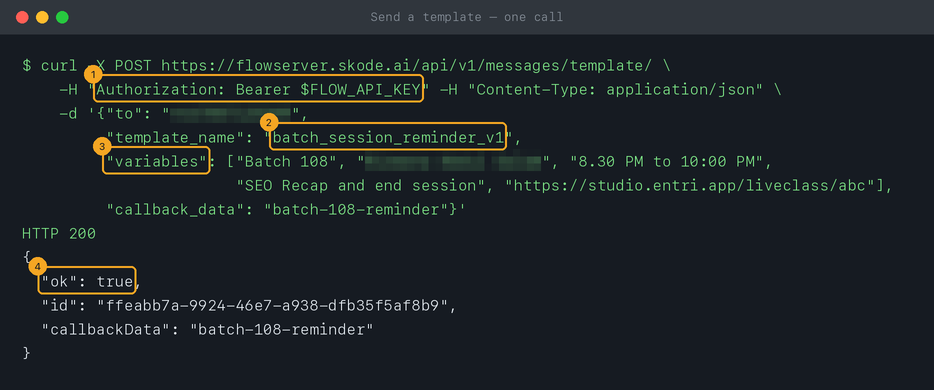
6Check the message on your phone
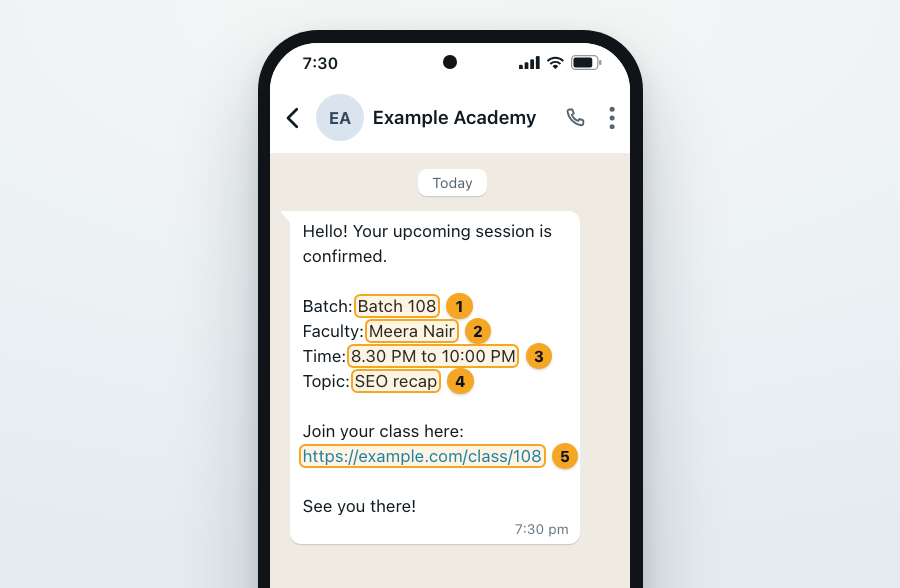
Read the message as your customers will. Each blank should hold the value your system meant for it — in this example the batch (1), the faculty (2), the time (3), the topic (4) and the class link (5). A value in the wrong blank means the code lists them in the wrong order; tell the assistant what you see, and it will fix the code.
© 2026 SkedX · Sample data only · Share and link freely · Copying the product or its design is not allowed · Terms
Common questions
Which assistant works best?
Any recent ChatGPT, Claude or Gemini model writes this code well. What matters more is the “What I need” part — the more exactly you describe your system, the less you’ll need to fix.
The code gives an error. What now?
Paste the error message back into the same chat — the prompt has already told the assistant what each Flow error means. Never paste your key.
Can the assistant set up an inbound hook instead?
Hooks are made in Flow’s screens, not with code — five minutes by hand. Ask the assistant for code only if your tool can’t call a hook.
Useful links
- OpenAPI file — assistants that can browse can read the full reference here
- API Keys in Flow — create the key the code will use
Previous: Move your WhatsApp API calls from Interakt to Flow · All APIs & Developers guides
Did this guide help?
Still stuck?Chat with support →


