They see the pictures and prices, add to the cart and send you the order — all in the chat.
In review: written from the product, not yet walked through live.
1Open the + menu
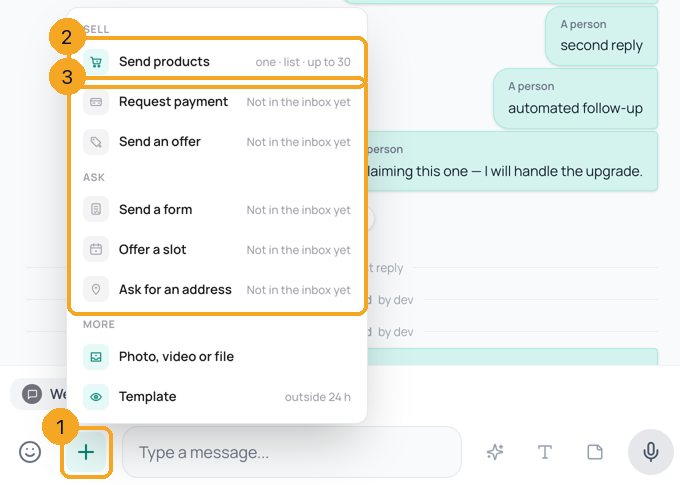
Open the chat and click + (1) at the left of the reply box. Click Send products (2). The other skills (3) say when they are not in the inbox yet.
2Pick the products
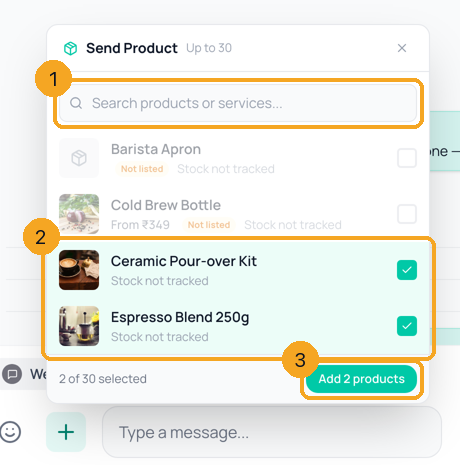
Search (1) or scroll, and tick the products to send (2) — up to 30. Only products live in your WhatsApp catalog can be ticked; the others say why, such as Not listed. Click Add (3).
3Send them
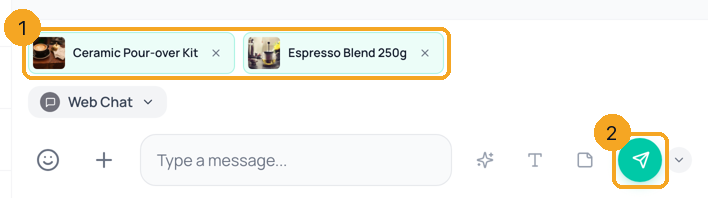
The products wait above the reply box (1); remove one with its ✕. Press Send (2). One product goes as a product message; several go as a list the customer can browse.
© 2026 SkedX · Sample data only · Share and link freely · Copying the product or its design is not allowed · Terms
Common questions
Why can’t I tick a product?
It is not live in your WhatsApp catalog yet — not listed, waiting for Meta’s review, or rejected. Set up or fix it from Set up your catalog.
The picker says products can only go within 24 hours
WhatsApp allows product messages only within 24 hours of the customer’s last message. Outside that, send a product template; the picker offers it.
Can my team do this from the CRM or the browser extension?
Yes, in WhatsApp chats. The CRM inbox and the SkedX extension have the same + menu once the catalog is set up. In any other chat there, Send products shows WhatsApp chats only; switch the reply channel to WhatsApp to send them. The Flow inbox can also send products on Facebook and Instagram, as cards with pictures.
Where do I see what the customer ordered?
The order arrives in the chat and on the customer’s contact, and it counts in SkedX Signal with its value.
Useful links
- Inbox in SkedX Flow — the + button in the reply box
Previous: What you see in a Flow conversation: every message as your customer saw it · All Inbox guides
Did this guide help?
Still stuck?Chat with support →


