This setup puts them on WhatsApp as a Meta catalog, so a customer can look through them, add to the cart and send you an order without leaving the chat. Each step is one screen; you can leave and come back where you were.
In review: written from the product, not yet walked through live.
1Choose where the products come from
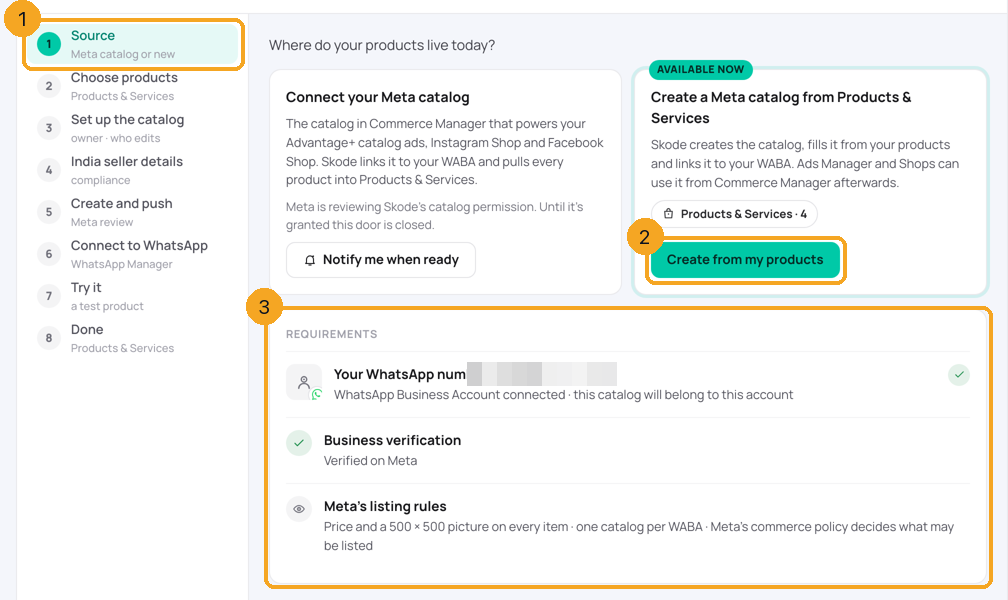
Open Skills → Catalog → Set up. The steps are listed on the left (1). Click Create from my products (2). The Requirements (3) show your WhatsApp number, your business verification and Meta’s listing rules, each with a tick when it is in place.
2Choose the products
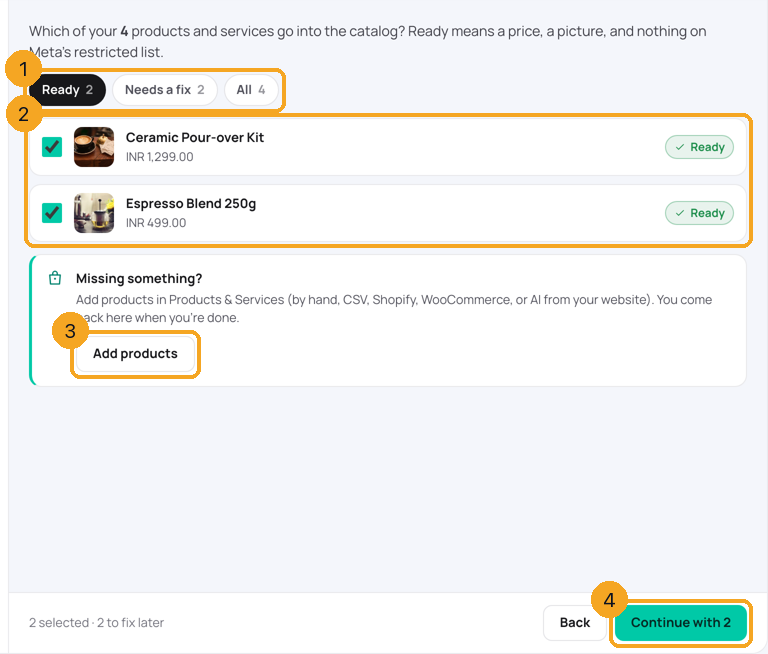
Ready (1) lists what can go on WhatsApp now — a price, a picture, and nothing on Meta’s restricted list. Tick the products you want (2). Needs a fix says what each other product lacks. Missing something? Add products (3). Then click Continue (4).
3Add a missing product and come back
Add products opens Products & Services with a bar on top (1) that says where you are in the setup. Add the product with Add (2) — by hand, CSV, Shopify, WooCommerce or from your website — then click Done, back to catalog setup (3).

4Choose who owns the catalog and where you edit it
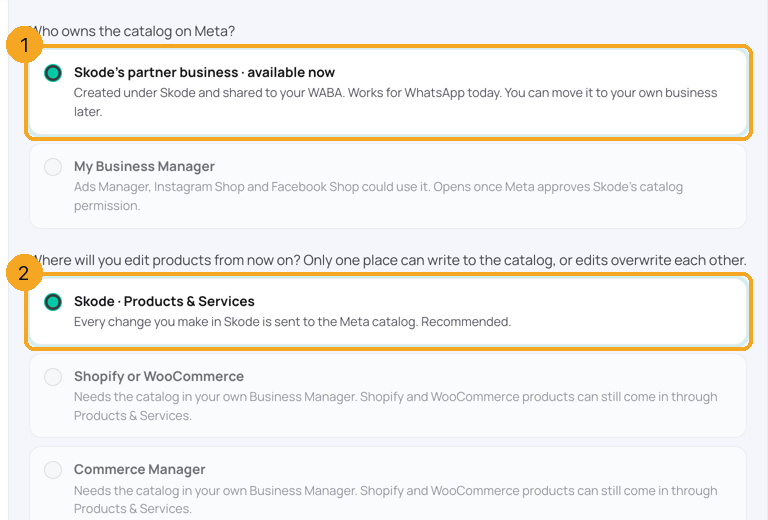
Pick Skode’s partner business (1): the catalog is made under SkedX and shared to your WhatsApp account, and you can move it to your own business later. Then pick Skode · Products & Services (2) as the one place you edit products — only one place can write to a catalog, or edits overwrite each other.
5Add your seller details (India)
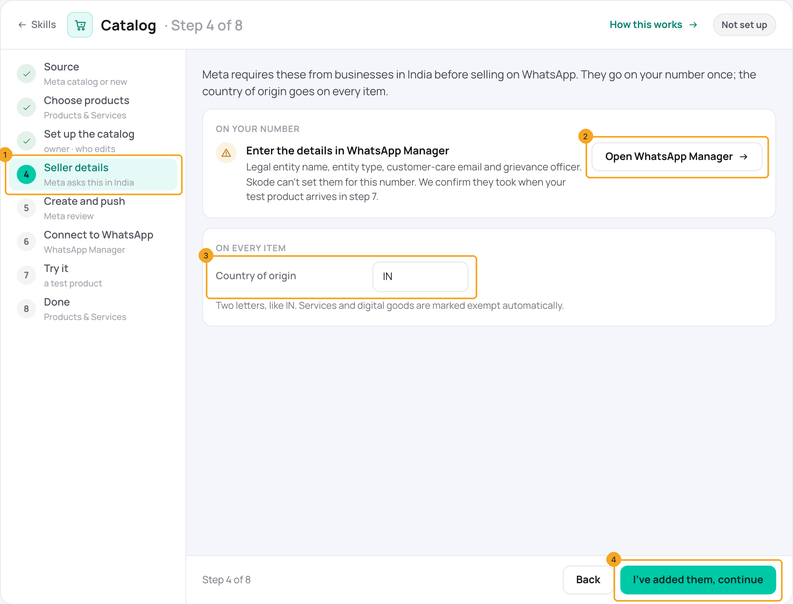
Meta asks businesses in India for these before it lets them send products on WhatsApp, so Seller details (1) shows only for an Indian (+91) number. Click Open WhatsApp Manager (2) and enter your legal entity name, entity type, customer-care email and the grievance officer’s name and email there. Check the Country of origin (3) — it goes on every item, and services are marked exempt by themselves. Then click I’ve added them, continue (4). A number in another country never sees this step.
6When Meta already has your seller details
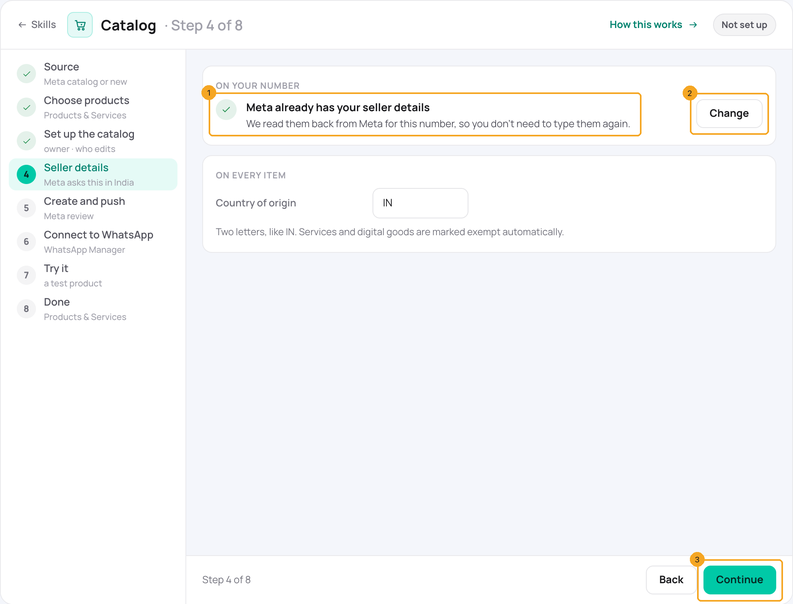
If Meta already has them — or a product you sent from this number reached a buyer — the step says Meta already has your seller details (1) and asks for nothing. To change them, click Change (2); otherwise click Continue (3). If Meta refused a product because some are missing, the step names what is still to add instead.
7Create the catalog and push your products
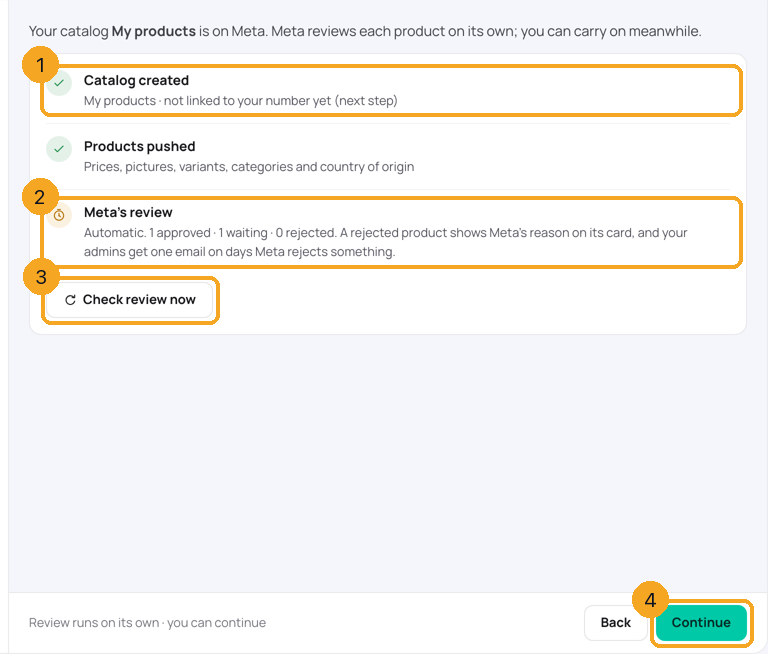
Click Create catalog and push. SkedX creates the catalog (1) and sends your products. Meta’s review (2) counts approved, waiting and rejected products; it runs on its own, and Check review now (3) asks Meta straight away. You can Continue (4) while Meta reviews.
8Connect the catalog to your WhatsApp number
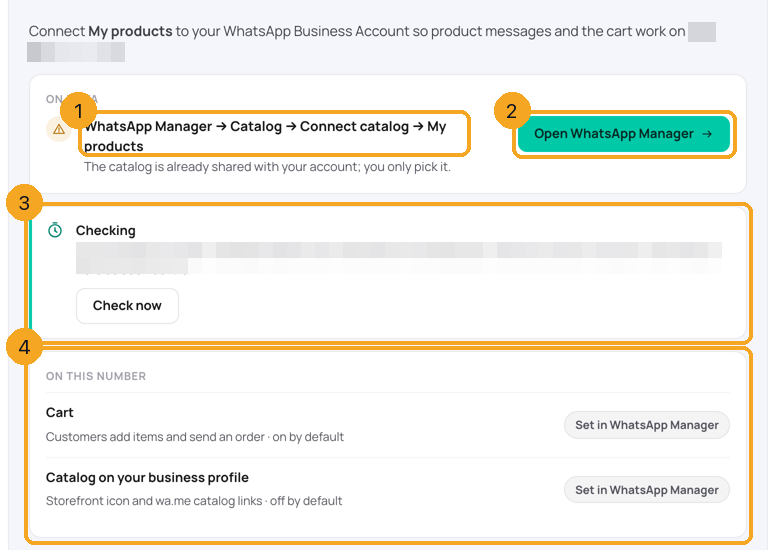
This one step happens on Meta. Follow the path shown (1) — WhatsApp Manager → Catalog → Connect catalog and pick your catalog — using Open WhatsApp Manager (2). SkedX checks every 30 seconds while the page is open (3). The Cart and Catalog on your business profile switches (4) are also in WhatsApp Manager.
9Try it on your own phone
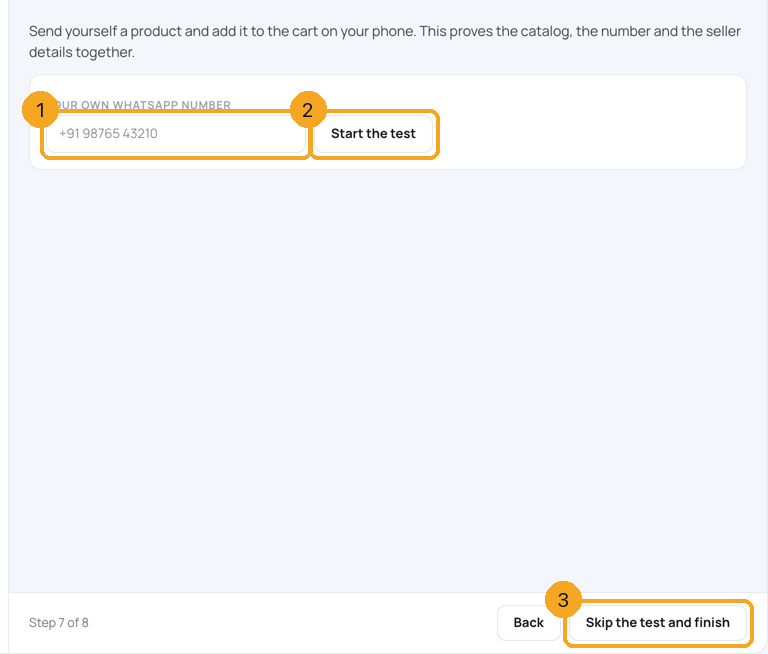
Type your own WhatsApp number (1) and click Start the test (2). Message your business number from that phone; SkedX sends you a product. Add it to the cart and send the order — it shows here within seconds. In a hurry? Skip the test and finish (3).
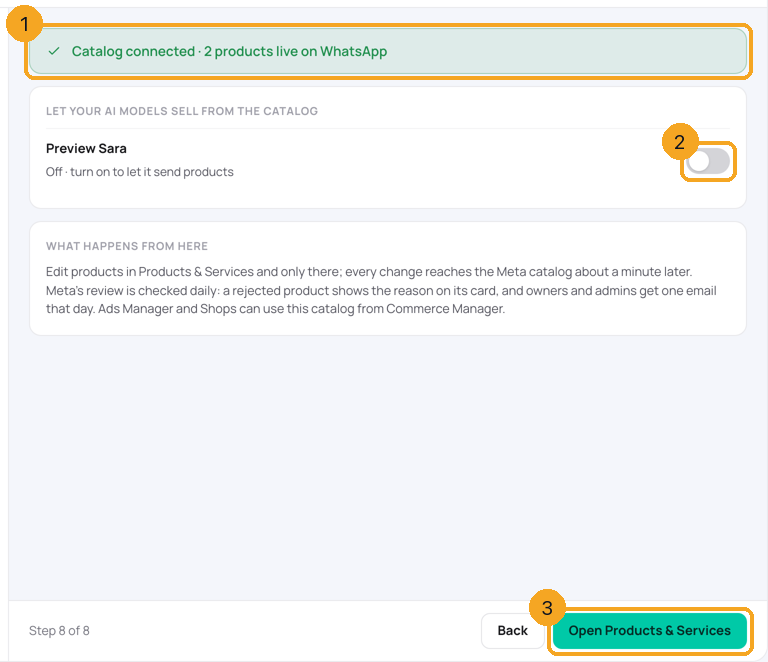
10Let your AI models sell, and finish
The green bar (1) says how many products are live on WhatsApp. Switch the catalog on for each AI model that should send products (2). Click Open Products & Services (3) — that is where you edit products from now on.
11Keep it right: Meta’s rules and your edits
Every item needs a price and a picture of at least 500 × 500 pixels. Meta’s commerce policy decides what may be listed — SkedX marks products that are likely not allowed (for example medicines or alcohol), but Meta decides on review. Edit products only in Products & Services; each change reaches Meta about a minute later. A rejected product shows Meta’s reason on its card, and owners and admins get one email on days Meta rejects something.
© 2026 SkedX · Sample data only · Share and link freely · Copying the product or its design is not allowed · Terms
Common questions
Can I use the catalog I already have in Commerce Manager?
Not yet. Connecting an existing Meta catalog opens once Meta approves SkedX’s catalog permission. Click Notify me when ready on step 1, and create a catalog from your products meanwhile.
Why is a product under “Needs a fix”?
It is missing a price or a picture. Open it in Products & Services, add what is missing, and it moves to Ready.
Meta rejected a product. What now?
The product’s card in Products & Services shows Meta’s reason. Fix the product there and SkedX sends the change to Meta about a minute later. Owners and admins get one email on each day Meta rejects something.
Step 6 says SkedX can’t see the setting
For some numbers Meta does not show SkedX whether the catalog is connected. Connect it in WhatsApp Manager, then click I’ve connected it; the test in step 7 proves it.
Why does SkedX ask for seller details?
Meta asks for them, not SkedX. Before an Indian (+91) WhatsApp number can send product messages, Meta needs the business’s legal name and type, a customer-care email and a grievance officer, and shows them to buyers in India. Without them Meta refuses product messages. Your Facebook catalog does not hold these; they belong to the number. If Meta already has them, the step says so and asks for nothing.
My business is not in India. Do I need this?
No. The step shows only where Meta asks for seller details — today India. A number from another country goes straight from step 3 to Create and push.
Do services go in the catalog too?
A service with a price can. A service without a price stays quote-first and is not listed. Services are marked exempt from the country of origin by themselves.
Can Ads Manager use this catalog?
Yes, from Commerce Manager. Keep editing the products in SkedX — only one place should write to a catalog.
Next in Skills & sellingSend an order update: Confirmed, Packed, Out for delivery, Delivered →
Useful links
- Catalog setup in SkedX Flow — Skills → Catalog → Set up
- Products & Services — where you edit products
- WhatsApp Manager — step 6
Previous: Your skills: everything SkedX can do in a chat, on one page · All Skills & selling guides
Did this guide help?
Still stuck?Chat with support →


